Getting started
Quick start
From an empty page to your first canvas in about three minutes.
You need two things: a description of your idea, and an API key for an AI provider. OpenRouter's free tier works without a payment method, so it is the quickest way to try Canvex.
1. Get an API key
- 1Open openrouter.ai/keys and sign in.
- 2Create a key. No credit or card is needed for the free models.
- 3Copy the key — it starts with
sk-or-.
2. Describe your idea
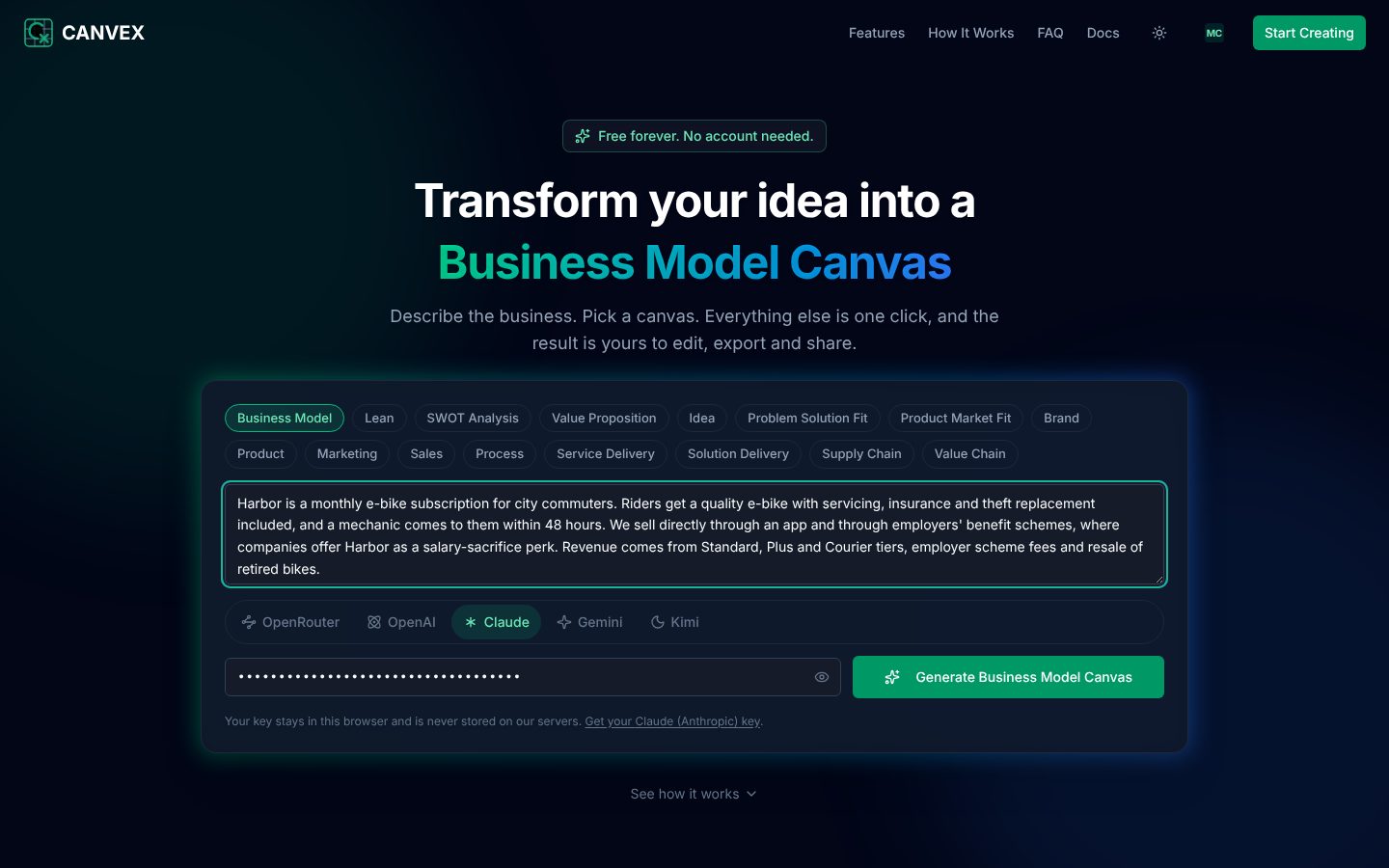
- 1Go to the home page.
- 2Pick the canvas you want first. The Business Model Canvas is a good place to begin; you can add every other type later.
- 3Describe the business in the box. Who it serves, what it sells, how it makes money and what makes it different. A paragraph is enough; a page is better.
- 4Choose a provider and paste your key.
- 5Press Generate (the button names the canvas, for example Generate Business Model Canvas).
3. Wait for the canvas
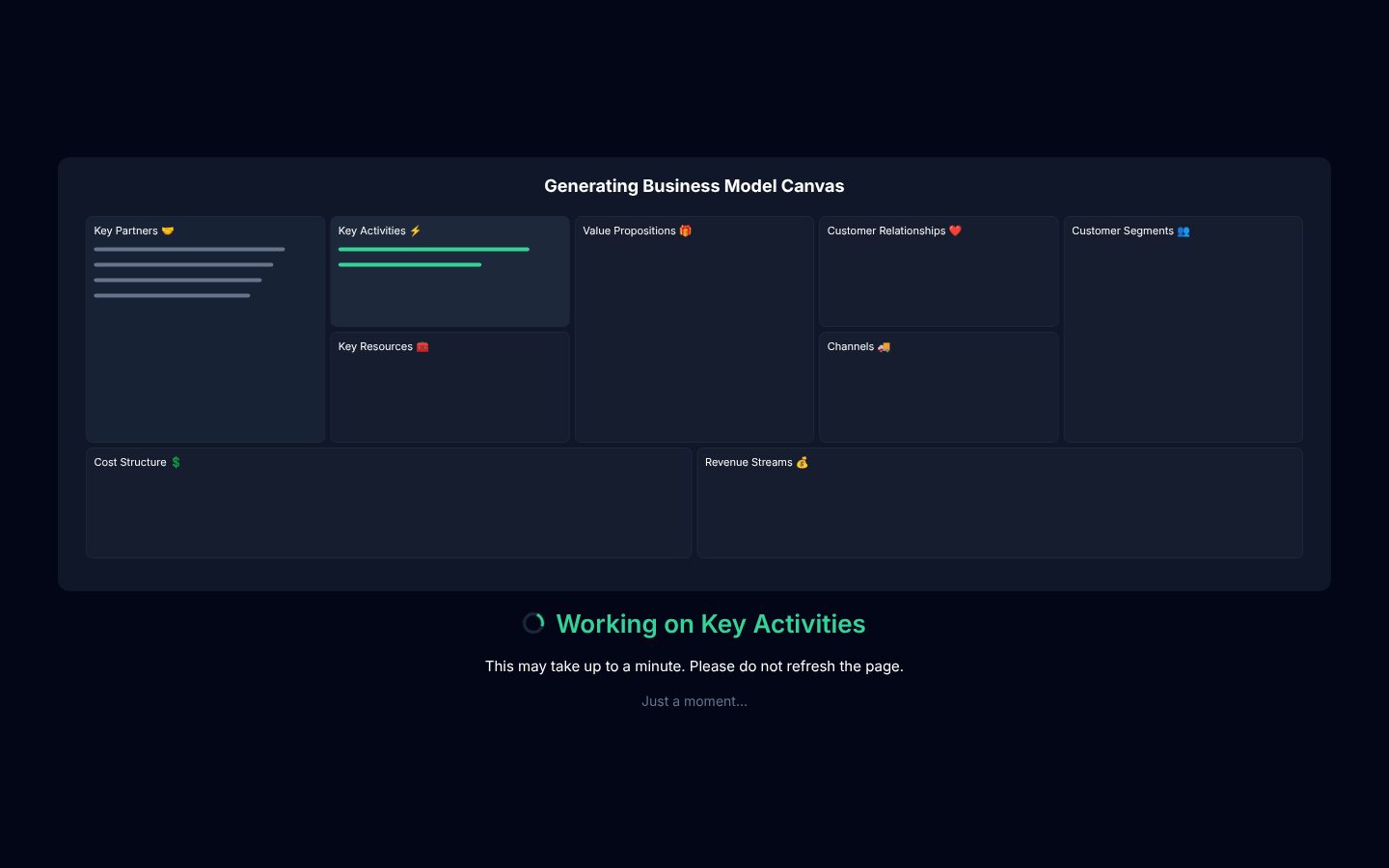
Generation usually takes between 20 seconds and a minute and a half, depending on the provider and the size of the canvas. An animated outline of the canvas keeps you company while you wait. If it takes longer, you can choose Stop and go back — the canvas is still saved when it arrives, and you are told.
4. Work with it
- Click any item to edit it, or use the + on a block to add one. See Editing a canvas.
- Use the canvas button beside the pills to generate another canvas from the same idea. See Ideas and canvases.
- Export it, or share a read-only link. See Export and Sharing.
- Sign in so your ideas are kept with your account rather than only in this browser. See Your account.