Your account
Create an account and sign in
An account keeps your ideas on the server, so they survive a cleared browser and follow you to other devices.
You can use Canvex without an account: everything you generate is kept in your browser. An account adds a copy on the server, tied to you and private to you, so your ideas are not lost when the browser's storage is cleared and you can open them anywhere you sign in. Accounts are free.
Create an account
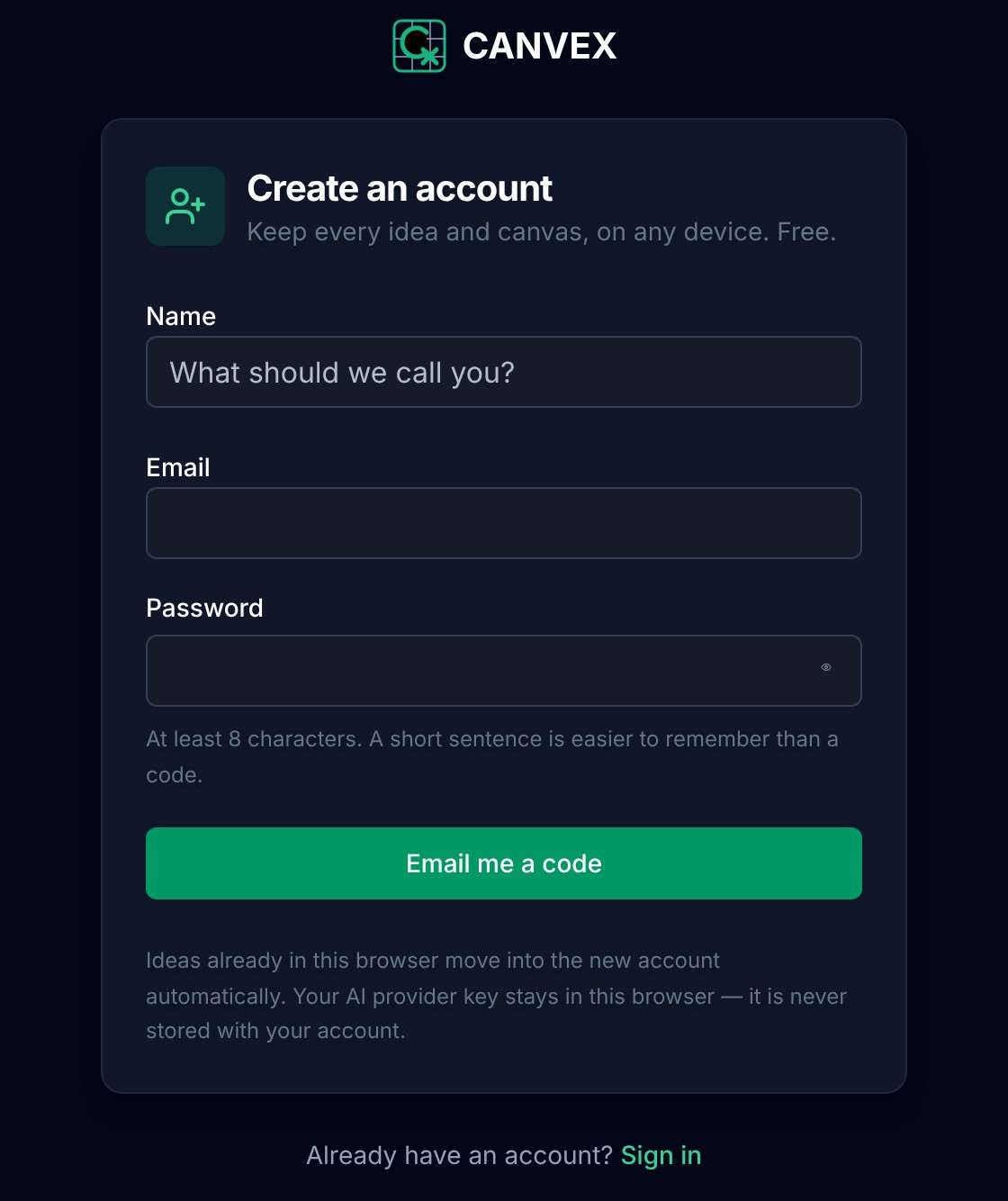
- 1Choose Sign in at the top right of the home page or of any canvas, then Create an account — or go straight to /register.
- 2Enter your name, your email address and a password of at least 8 characters. A short sentence is easier to remember than a code.
- 3Press Email me a code. A 6-digit code arrives at that address within a minute; it works for 10 minutes.
- 4Type the code and press Verify and continue. The account is created only now, and you are signed in and taken to your account page. No email? Check the spam folder, or choose Send a new code.
Sign in
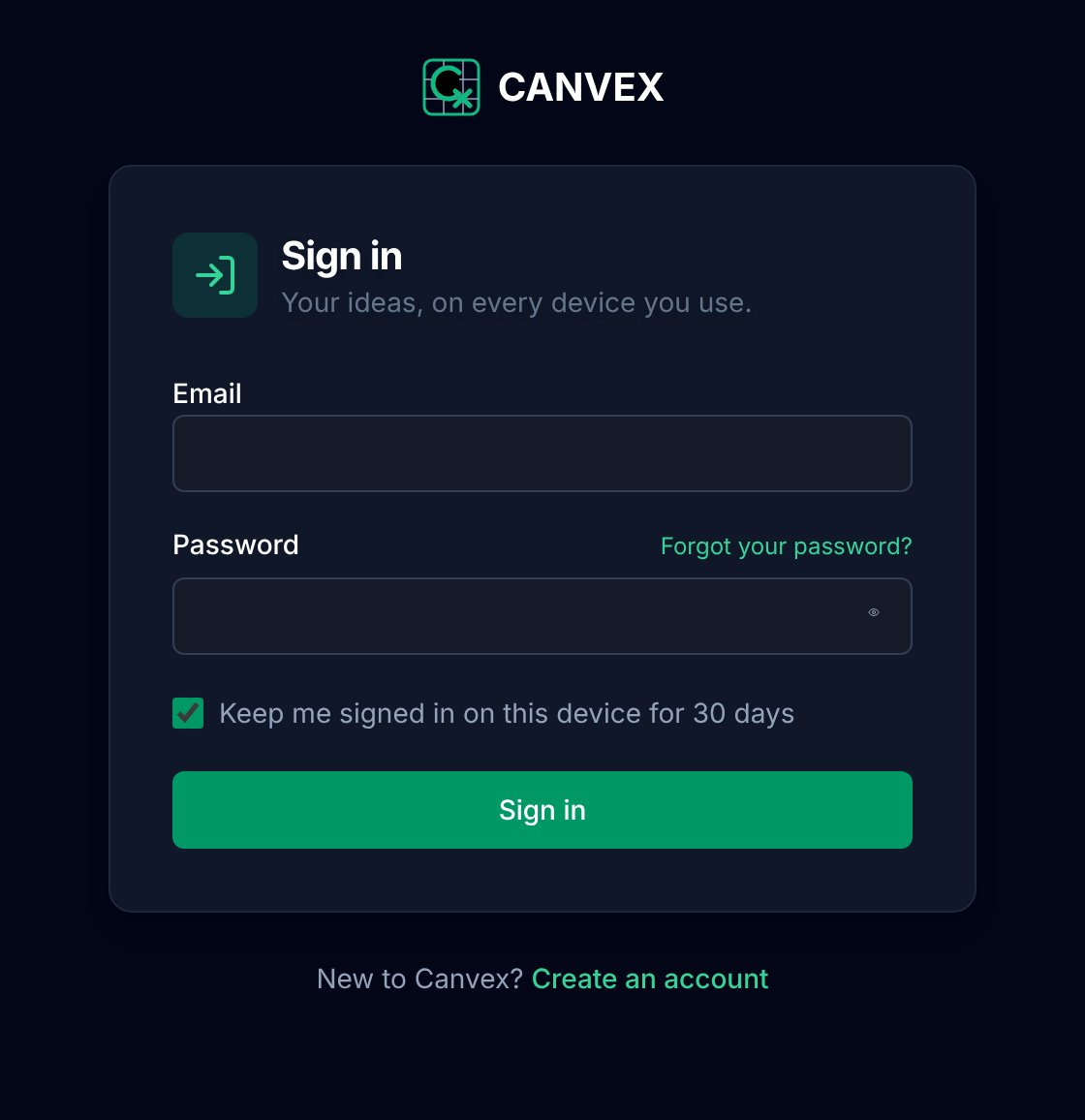
- 1Go to /login, or choose Sign in at the top right.
- 2Enter your email and password. Tick Keep me signed in on this device for 30 days on a computer that is yours alone.
- 3Press Sign in. Your account's ideas are brought into this browser, and anything this browser already held is added to your account.
- 4Made your account before email codes existed? The first time you sign in, you are asked once for a code sent to your address, to confirm it.
Sign out
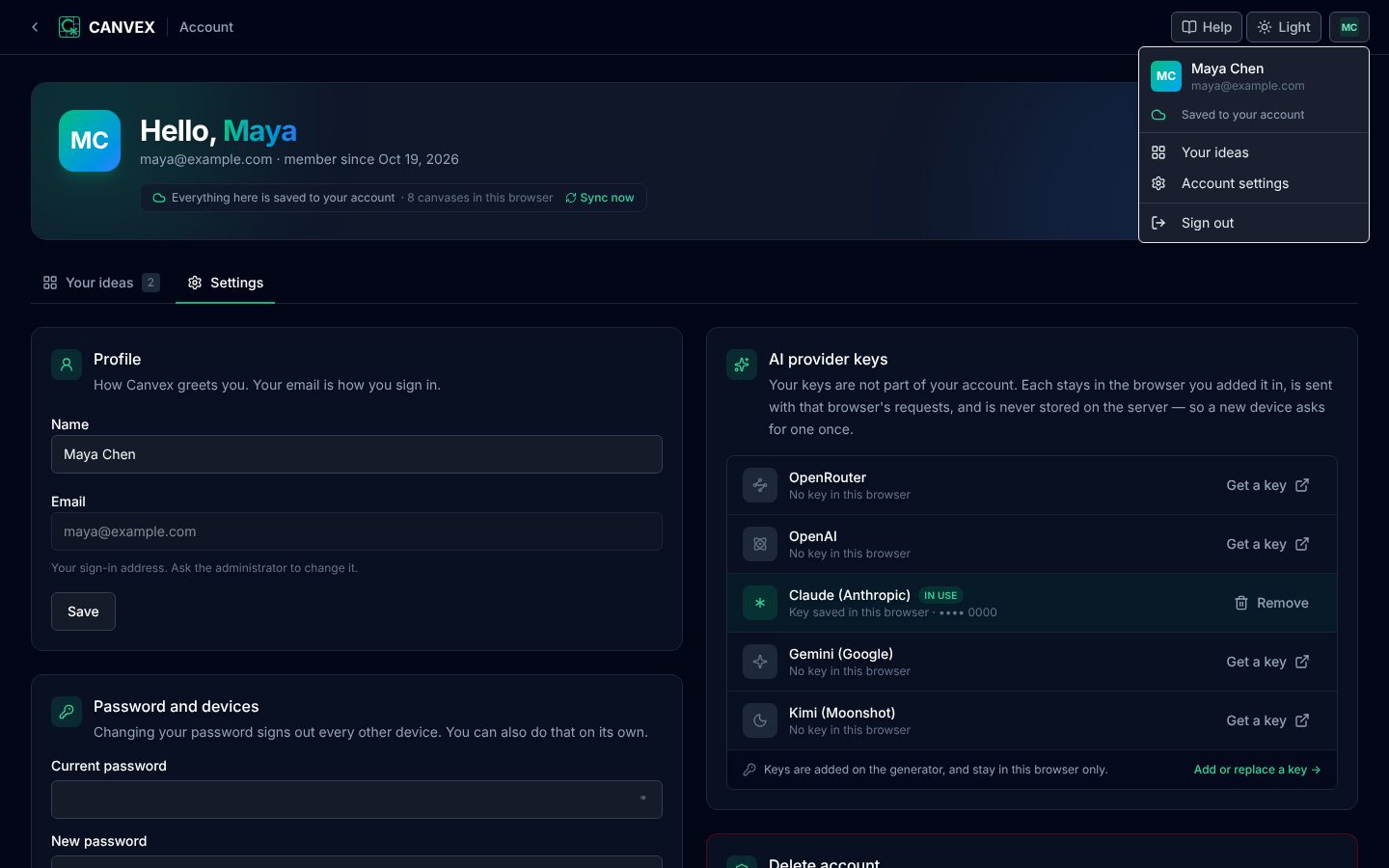
Click your initials at the top right and choose Sign out. Canvases that are safely saved to your account are removed from this browser, so the next person to use it does not see them; they come back the next time you sign in. Anything that had not reached your account yet is left in place.
Forgotten password
- 1On the sign-in page choose Forgot your password?
- 2Enter your email address. If it belongs to an account, a link to choose a new password is emailed to you. The link works once and expires after an hour.
- 3Open the link and choose a new password. You are signed in, and any other device signed in to your account is signed out.
If this deployment cannot send email, the page says so. Ask the administrator, who can set a new password for you from the admin panel.